Menu

Overview

INXPO Webcasts, provides clients with the ability to deliver live, simulive, and on-demand broadcasting options using telephony, webcam/microphone or live video streaming. Interactive tools such as, live chat, Q&A, polling questions, desktop sharing and handouts are just a few of the features that keep an audience engaged. This guide will provide you with the appropriate tips and tools, to create and deliver an engaging webcast.

Best Practices

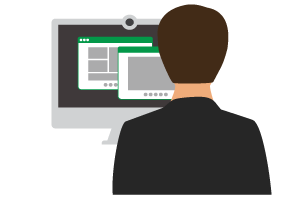
When delivering a webcast you can use a variety of devices.

Live Day

The live day, consists of a live audience ready to learn and engage. The following tips are in preparation for your live webcast, enabling you to present with confidence, leaving your audience wanting more!

Have a Printed Copy of the Slides Available

In case of emergency, you should have a printed version of your slides readily available. If the you intend to utilize a teleprompter or you lose your train of thought, a quick glance at the slides will help keep you on track.

Have a Glass of Water Handy

It’s not uncommon for your mouth to become dry when presenting due to nerves. A glass of water and stopping to take small sips can create a natural pause during the webcast and help calm your nerves.

Arrive 30 Minutes Early

Early arrival will allow to test appropriate video/webcam software, audio levels, review slides and run through additional features available in the webcast. Once early entrance is accessible to attendees, you can begin to interact with the online audience to promote engagement and excitement.

Start On Time

The webcast should go live at the indicated start time. Once the webcast has started, attendees can continue to join and engage with you and other attendees. A speaker that starts on time demonstrates professionalism and that you’re prepared.

Be Conscious of Timing

Use the webcast timer to stay on target with the webcast length and leave an appropriate amount of time towards the end for live Q&A (if applicable). To best understand the length of your webcast, practice delivering the content prior. If the webcast runs over the expected amount of time on live day, let attendees know they’re able to watch the remaining portion of the webcast on demand, if unable to stay.

What’s Expected of the Audience

Review with the online audience what’s expected while attending the webcast. Review the available features in the console such as the live chat, Q&A, polling questions, etc. This will further enhance their experience and result in a more engaging webcast.

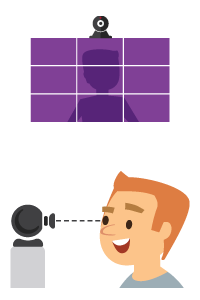
Look Into the Camera

Webcam webcasts allow an instant connection with the audience. Refrain from moving and/or swiveling your chair, looking around the room and looking down continuously at your notes. Eye contact creates the illusion that you’re presenting to each attendee in the webcast. Keeping eye contact with the audience demonstrates you’re confident in the content you’re presenting.

Don't Announce Issues

If an issue arises with the webcast and/or you’re unaware of how to use a feature in the webcast, use the presenter chat to address issues as opposed to a verbal announcement to the audience. A verbal announcement to the audience may result in attendees leaving and will be part of the on demand recording.

Have Fun!

Smile and have fun! If you’re smiling, it shows interest in the webcast content! If you’re having a good time, the audience will too.

The following tips will introduce best practices and tools enabling a positive attendee experience that keeps them touching their keyboard every 2 minutes.

When the webcast begins, lead with strong content that will grab the attention of your audience. Typically, attendees are accessing from work or home, which allows for multi-tasking. If the audience isn’t engaged within the first 2 minutes, you may lose their attention.

Remember, the goal is for attendees to touch their keyboard every 2 minutes.

Ideas

  • Tell a real-life story which has value.
  • Share a statistic.
  • Share a compelling quote.
  • Ask an open-ended question, ask the audience to share their response in the live chat.
  • Share a pre-recorded video which tells a story that illustrates the main objective for the webcast.

Start the webcast on the right foot, and the rest of the webcast will naturally flow.

Chat

  • Ask the audience where they’re located, the current weather in their location, what they’re excited to learn about, etc.
  • Host a contest and offer a prize to the 1st or 10th respondent that answered the question.
  • Host a similar contest toward the end of the webcast, announce all winners once the webcast has completed.

Polling Questions

Polling questions allow for audience participation by asking attendees for their opinion based on the content. It’s an effective way to gather statistical feedback and is recommended every 2-3 minutes.

  • Deploy a quiz to measure your audiences’ knowledge of the topic.
  • Ask audience members for feedback during the webcast to keep content relevant.
  • Ask a polling question about the specific interest area surrounding the topic.
  • Poll your audience for suggestions on future webcasts.

Questions & Answers

Another touch point for audience engagement is Q&A, which traditionally takes place at the end of a webcast. Be prepared to go over additional concepts, demonstrate ideas and discuss what matters most to the attendees.

  • Address the Q&A feature before, during, and after the webcast.
  • Read the question and address who it was from to keep the audience engaged and invested.
  • If unable to provide an answer to a question, don’t be afraid to say “I don’t know”. Let the audience know a direct follow up will be provided after the webcast has completed.
  • If unable to answer all questions, let the audience know you will follow up after the webcast has completed.

Learn the Content

Familiarity with the content allows you to focus on presenting, rather than trying to remember the points to make. To minimize worry about forgetting elements of the webcast, include notes in the PowerPoint and have a printout for talking points.

Practice Makes Perfect

Practice your content delivery in the environment in which you intend to deliver it, such as in front of a computer. Presenting alone in front of a computer can be awkward at first, ask a colleague to sit in the room so you can present to a familiar face.

Understand the Tools

You should understand and utilize the webcast console options available, to maximize the effectiveness of the webcast technology. It’s important to know the basic functions of the software, e.g. how to advance slides and polling questions, manage Q&A or a live chat, before the webcast is scheduled to start. If you prefer to solely focus on presenting, a moderator can assist with additional tasks such as the above.

Speak Up

Check audio levels before the webcast, but also make sure to breathe at regular intervals to speak audibly and clearly. Maintaining a clear, even tone throughout the webcast will allow the audience to hear it clearly without adjusting their volume settings.

Look at Your Camera

If presenting via webcam, remember, the webcam is your direct connection to your audience. Make eye contact with the camera so it appears to the audience that you are speaking directly to them.

More is More

Speaking unaccompanied can be highly engaging, but including additional speakers often provides a more conversational experience for the audience. Multiple speakers during a webcast can also make you feel more at ease.

Don’t Fear Mistakes

People make mistakes, even during webcasts. Flubs and mistakes occur but they won’t derail your webcast – unless you let them. If this occurs, move forward with your webcast as planned and remember, the audience is forgiving.

Be Prepared

During the webcast, have a glass of water nearby to sip and a printout of your slides and/or notes available should you need to refer to them.


It’s difficult to keep attendees engaged so finding a webcast length that is appropriate for your audience is ideal. It’s recommended that a webcast be no longer than 30 minutes, 20 minutes for the content and conclude with 10 minutes for Q&A. To make sure attendees are touching their keyboard every 2 minutes, prepare an outline that ties your interactive components to the slides.

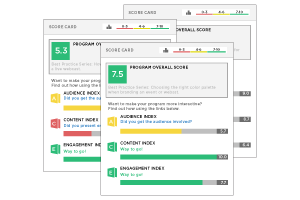
Webcasting is a collaborative endeavor between you and your audience. Like any other skill, it takes time and effort to develop. You’ll learn lessons from your first webcast, which is part of the process of growth. Make sure that your webcasting platform gives you an engagement index by measuring how often your attendees are touching their keyboard and staying engaged.

Tip: During the time between when a poll is asked and the answer shown (say 30 seconds) - this is a good time to skim what’s being said in the group chat and prepare you to deliver an intelligent response.

When utilizing a standalone speaker phone (excluding those that are part of a video conference system) ALL ambient background sounds (i.e. tapping on the table, typing on a computer, doors opening or closing, even air circulation devices etc.) will be heard and magnified through the speaker phone. While speaker phones are convenient for large meetings, the audio quality does suffer exponentially. Clarity may also be impacted depending upon the quality of the device.

Headsets are a convenient way to communicate via telephone and computer. Being hands free is a benefit, however, the audio quality varies depending on the type of headset. Wired headsets, which offer a direct connection, will always provide better quality than wireless or Bluetooth.

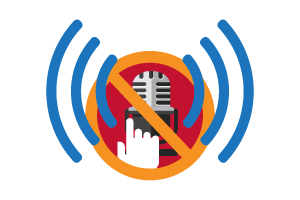
Know How to Mute

When leveraging multiple speakers and they’re not on air, muting their audio will help illuminate background noise.

Speak Slowly

When pre-recording, speak slower than usual. Try not to interrupt other parties speaking and avoid voice overlaps. Speaking slowly and clearly with sufficient pauses allowing another individual to speak, helps ensure that the recording is crisp and clear.

Keep Still

It is advisable not to move around needlessly during a webcast. Insignificant sounds such as the microphone rubbing against the collar of a shirt, rustling papers etc., can cause interferences. Moving will also cause the speaker's voice volume to fluctuate as they move farther from and closer to the microphone.

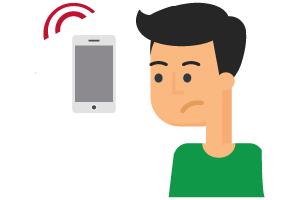
A cell phone is a back up option to the devices mentioned above. One thing to consider, the microphone in a cell phone picks up higher frequency background noises. While you may not hear this during the webcast, the recording will pick up and record the noise.

A cell phone has a higher risk of dropped calls which results in a lower level of reliability. If the cellular strength intermittently fades, this will produce noise or inconsistent speaker volume and/or clarity levels.

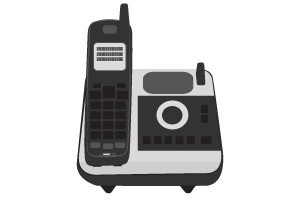
We recommend using a desktop phone with a handheld receiver to produce the best telephone audio quality. These devices are also the most reliable. This option is ideal for multiple speakers as the change from speaker to speaker is achieved simply by speaking. For these reasons, we always recommend using this device.

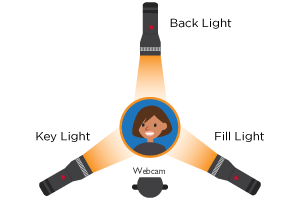
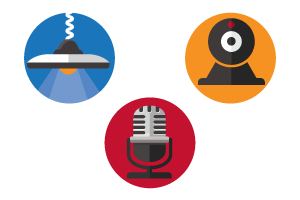
Key Light

The main light used to illuminate the subject, the speaker.

Fill Light

The secondary light that fills shadow, usually half the intensity of the Key.

Back Light

The light that shines behind you, adding a rim of light to your head.

Use Natural Light When Possible

Take advantage of natural light in the room, you can adjust the total look with overhead and additional lighting as needed.

Keep Windows in Front of You

A window behind you can result in a dark video experience. A window in front of you, use the natural light to illuminate your face.

Be Familiar With the Webcam

Knowing how to access the webcam software will help you or the webcast engineer to adjust the webcam for the best picture.

Have Proper Placement of the Webcam

Use the rule of thirds to align yourself so you appear centered.

Make Sure the Camera is Placed at Eye Level

This will ensure you’re looking directly at the audience. You can adjust the camera height or the chair you’re in to achieve this.

Avoid Distracting Backgrounds

Once your lighting and equipment has been setup, make sure to check your surroundings. Pay close attention to what’s located directly behind you, confirm there are no distracting colors or movement.

Use External Microphones Whenever Available

Built in microphones on your computer or webcam often contain lower quality than what you want for your webcast. The mobility of an external microphone will allow you to place the microphone in an optimal location for sound.

Check for Good Audio Placement

The microphone should be close to your mouth but not too close allowing to pick up popping “p’s” or specific words that hit the top of the audio levels. In addition, the microphone should not be in the webcam view.

Test Audio Levels

Make sure the volume is loud enough to hear but doesn’t pick up background noise or static.

Don’t Touch the Microphone While Live

Adjusting or moving the microphone while live will make loud noises and can disrupt the audience.

Limit Interference as Much as Possible

Turn off cell phones, fans, computer speakers, or anything else that may be a distraction during the webcast.

When you decide to present on webcam during a webcast, what you wear matters as much as the content you are presenting. Not only will your audience see you, but the camera reacts differently to specific colors and patterns. Looking your best can help you capture more of your audience’s attention.

Below are best practices and tips when presenting on webcam:

Blues/Cooler Tones

Blue and other cool color tones will enhance your appearance.

Tie Long Hair Back

If you have longer hair, ensure it’s tied back. Hair near the microphone can cause microphone interference and distraction to the audience.

Contact Lenses

If possible, avoid eye glasses and revert to contact lenses, eye glasses can cause a glare. If required, adjust the lighting to eliminate as much of a glare as possible.

Make-Up

Foundation helps men and women avoid shine on their skin or the appearance of looking washed out.

Small Patterns (e.g. polka dots)

Patterns can create interference with the camera, known as a Moire effect.

Busy Colored Patterns

Large patterns can distract viewers

Tight Pinstripes

Camera interference

High Contrast (White, Black, Mixed)

Camera interference

Scarves

Microphone interference

Dangling Earrings and Shiny Jewelry

Can reflect lighting, cause glare and microphone interference.

When delivering a webcast, your location plays a key role in how your audience will perceive your content. If possible, deliver webcasts from a studio or green room, to provide the highest-quality look and sound for your webcast.

For many speakers, these resources are not available, so webcasts are often broadcast from an office or conference room. There are several key considerations in choosing a good location for webcasts, including: noise, proximity to other offices, lighting, network connection and more. Selecting a room from which to deliver the webcast should not be a last-minute decision. Ensure your room has been selected in advance, has been reserved and you have practiced presenting your content in that room prior.

A wireless network can be inconsistent and are more likely to drop connections, which can disrupt the webcast. Being hard-wired to the network will help ensure strong connectivity including clear audio and video streams.

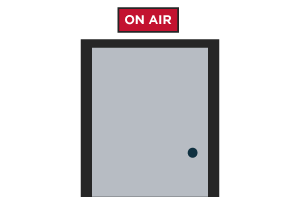
When choosing a webcast location, select a room with a door, to block out interruptions. If necessary, a note on the door can alert others to refrain from loud noises or entering the room during your webcast.

Know How to Mute:

When leveraging multiple speakers and they’re not on air, muting their audio will help illuminate background noise.

When pre-recording, speak slower than usual. Try not to interrupt other parties speaking and avoid voice overlaps. Speaking slowly and clearly with sufficient pauses allowing another individual to speak, helps ensure that the recording is crisp and clear.

It is advisable not to move around needlessly during a webcast. Insignificant sounds such as the microphone rubbing against the collar of a shirt, rustling papers etc., can cause interferences. Moving will also cause the speaker's voice volume to fluctuate as they move farther from and closer to the microphone.

For webcam webcasts, ensure you’re set up for optimal on-camera display. That means, you’ll need to control the overhead and window lighting, to allow ample illumination and avoid glare. Interior rooms that contain no natural light source may require additional lighting to brighten the space.

Manage noise by turning off fans, telephones or public address systems. Keeping ambient noise to a minimum is important for a good webcast experience. If you’re unable to control noise-generating equipment, another location would be best.

For webcam webcasts, comfortable and stationary seating is preferred. When selecting a chair, use a chair that is adjustable for height but doesn’t swivel. Swiveling on camera creates a poor attendee experience and can be distracting.

For telephonic webcasts, you should use a phone with a headset. Cell phone or speaker is not the most ideal when presenting, the sound can come through muffled or distorted. In addition, a speaker phone can pick up outside noises that may distract the audience.

Once a Webcast is Over

Analyzing a variety of metrics can help organizations understand the event’s impact and how to create future successful webcasts. Two key metrics are audience participation and engagement scores. It’s important to remember, metrics may fluctuate as new audience members watch the webcast on demand.

Review the Metrics

Understand attendance numbers. Where during the webcast did numbers drop? At which points was attendance highest?

Review survey and polling results, chat comments, and Q&A to understand how the webcast was received. You may find that specific topics worked well for the audience while other areas and/or topics were difficult to understand.

Any questions that have gone unanswered during the webcast due to time, answer them via email following the completion of the webcast.

Gather Feedback

Ask the audience and a trusted source (or two) to critique the webcast content, pace, performance, etc.

Gathering feedback will help to improve future webcasts and understand what components work and which areas need fixing.

Ask the audience what other topics they are interested in, to continue content creation that captures interest and keeps them coming back.

Re-Use the Content

Your webcast is a rich source of content to re-use and re-purpose. Leverage the content, on-demand.

For marketing related webcast content, promote on-demand access to extend the life and value of the webcast, especially for those who registered but did not attend.

For training related webcast content, audience questions and comments are a great source of new FAQs and supplementary material for another touch that solidifies the topic for your audience.

Don’t forget to monitor comments and questions that may arise from on-demand viewers.

Technical Requirements, System Checks and Network Preparation

A strong internet connection and a computer that meets the required specifications for delivery will be important to ensuring a successful webcast.

STUDIO Staffer Computer Requirements:

  • Each computer that is logging in to the STUDIO Console as either a speaker or a support staffer should meet the following requirements to ensure proper connectivity.

    • Have a Hard Wired Internet Connection: Turn off wireless access on the computer to ensure the computer is using the hardwired connection.

    • Pass the STUDIO System Test: Staffers must pass the WebSocket and WebRTC tests, while speakers using Webcam or a microphone should also pass the Microphone and Camera tests. STUDIO System Test

Network Requirements:

  • When presenting a webcast it is important to ensure the speaker’s network is able to handle audio and video streaming. Testing in advance can help identify potential issues and avoid negative experiences for the speaker and/or the audience.

  • Speakers should confirm that the network in the location they will be presenting from has enough available bandwidth for a rich media webcast. A minimum of 450 kbps “up” is necessary for delivering a webcast. INXPO recommends a connection of 750 kbps or higher.

  • The STUDIO System Test should be run in advance to identify any network issues the speaker might have. If a staffer does not have enough bandwidth (if the staffer Health is anything other than Good) or if the WebSocket or WebRTC tests fail, please contact your IT team for network support.

Tips and Tricks For Delivery:

When planning to present using STUDIO it is recommended that each speaker:

  • Determine their delivery location and network and run the STUDIO System Test at least 48 hours before the dry run.
  • Participate in a dry run of the webcast to ensure connectivity and understanding of processes with the live day engineer.
  • Always use the same previously tested location/equipment on the live day.
  • Test their system as soon as they log on to the STUDIO console.

Being an Engaging Online Presenter

Being a dynamic online presenter takes practice. Connecting with a remote audience is challenging. The speaker must understand the technology, have a solid network and computer system and remain upbeat throughout the webcast.

Tips for Success:

    Engaging Presenter
  • Learn the Content: Knowing the content allows a speaker to focus on presenting, instead of trying to remember what they were going to say. If a speaker is afraid of forgetting what points to make, push them to include notes in their PowerPoint file; the STUDIO console will display the notes for the speaker to see while presenting.

  • Practice: Speakers should not only practice their content but practice delivering it to their computer as this can be very awkward the first few times. If speakers are not comfortable delivering alone to their computer, they can ask colleagues to sit in front of them so they can present to familiar faces instead of the computer screen.

  • Learn the Software: Make sure speakers understand and utilize the content options that are available to them so they can properly prepare for the webcast. In addition, make sure each speaker understands how to change slides, manage Q&A, chats, polls, etc. before the live day.

  • Speak Up: Make sure to project your voice and keep a clear, even tone throughout the webcast so that the audience is able to consistently hear everything without adjusting their volume.

  • Look at Your Camera: If presenting via video, remember that the webcam is your audience. Make eye contact with it so the audience feels like you are speaking directly to them.

  • Have Multiple Speakers: Additional speakers break up the voices and provide a more conversational feel. It can also make speakers feel more at ease as they are not “alone”.

  • Don’t Be Afraid to Mess Up: Flubs happen and it’s okay. Just keep going, the audience is forgiving.

  • Be Prepared: Have a glass of water ready as well as a printout of the slides/notes in case you need them. Also, make sure to follow the quick tips for presenting.

How to Create Engaging Online Content

When delivering content online, it’s important to not only understand the options available but also how to utilize and deliver them in a way that engages the audience. Speakers must create moments for interaction and feedback from the audience. This is done by varying the kinds of materials shown on screen and asking the audience for feedback during the webcast through Q&A, group chat or polling questions.

Slide Content Options:

  • PowerPoint Files: Use short bullet points and imagery instead of text-heavy slides. Users attending on mobile devices will have difficulty reading small text so the more visual the information, the better the experience for everyone.

  • Polling Questions: Create questions with single or multiple response options to gather information about the audience. The feedback gathered from polls can be used to shape the direction of the webcast, gauge understanding and/or collect additional information from your attendees.

  • Desktop Sharing: Show (don’t tell) with the desktop sharing option. If the speaker is discussing a new product, website or application, using desktop sharing to demonstrate the topic is a powerful information delivery tool.

  • On Demand Webcasts: Speakers can record the webcast in advance of the live day. The webcast is then played back on the live day to a virtual audience.

  • Video Clips: No matter the style of webcast, short video clips can be used to show pre‐recorded content such as commercials, demonstrations or messages from other presenters. Use of video clips (typically five minutes or less) provides additional visual interest, breaks up the voices being heard and draws viewer attention. During video clip playback, speakers can participate in the group chat and/or review questions to keep the interactivity going.

  • Testing and Certification: During the webcast, speakers can post quizzes to test the audience’s knowledge and retention of the information being delivered. If the speaker chooses, speakers can automatically receive certificates for passing scores. To gauge knowledge and understanding, some speakers will post a test at the beginning during the introductions and then again at the end to compare/contrast scores.

  • Video Crew/Live Streaming: This style of webcast is typically done from a studio or live event where a video crew has been brought in to record and livestream the audio/video for a STUDIO webcast.

Console Widget Options:

    Consol Widget
  • Group Chat: The group chat is an open forum for attendees to post comments and communicate with each other throughout the webcast. Speakers and moderators can take advantage of this feature by asking open-ended questions and encouraging responses in the chat. While speakers shouldn’t constantly keep an eye on the chat, taking chat room breaks to see what the audience is saying and engage with them makes the audience feel more connected, which can help with information retention.

  • Q&A: Attendees are able to submit questions at any point during the webcast. These can be prioritized and reviewed by either the speaker(s) or a moderator. Speakers should build in Q&A breaks in their webcast to address questions throughout and break up the content. Speakers can also plant seed questions if the audience is slow to type in their own queries, or as a tool to shape how content is delivered.

  • Handouts: Provide documents and links for attendees to download as take-aways. Often speakers will include a PDF version of their deck or links to additional resources so the audience can continue to interact with the speakers, hosts or content.

Exit Action Options:

  • Survey: After the webcast, redirect attendees to a survey where they can provide feedback about the webcast, the content and/or the speaker(s).

  • Webpage: Attendees can be redirected to a webpage following the webcast. This can be useful as a Call To Action, or to keep your them engaged with your content.

  • Testing and Certification: Attendees can be redirected to a testing/certification slide where they can be graded on the information they just consumed.