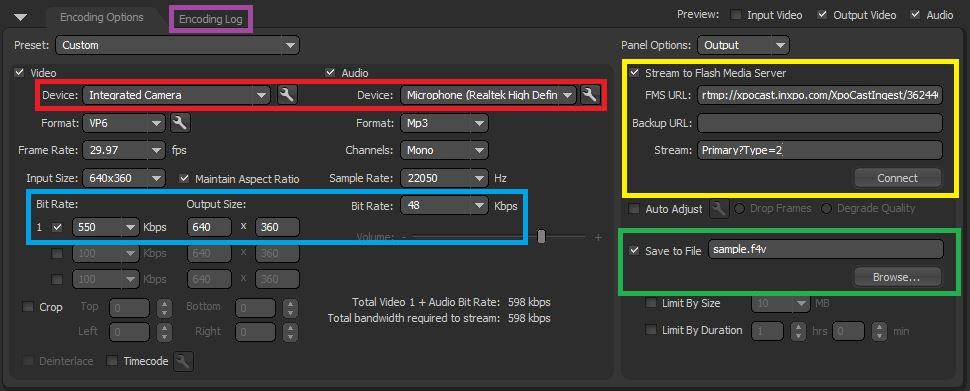
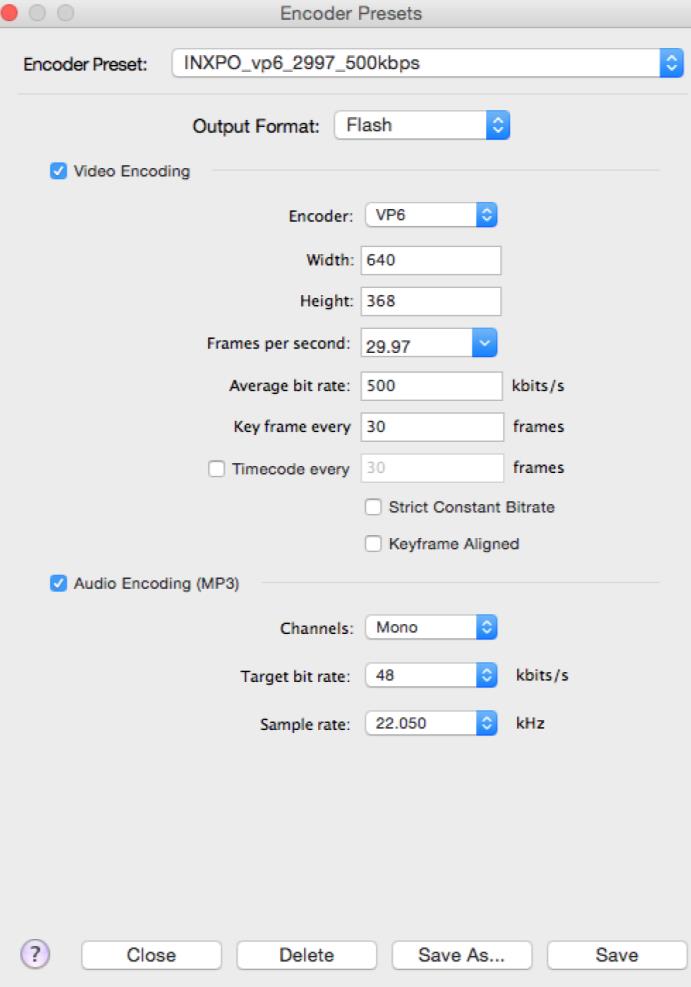
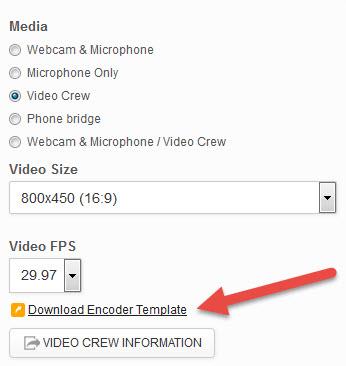
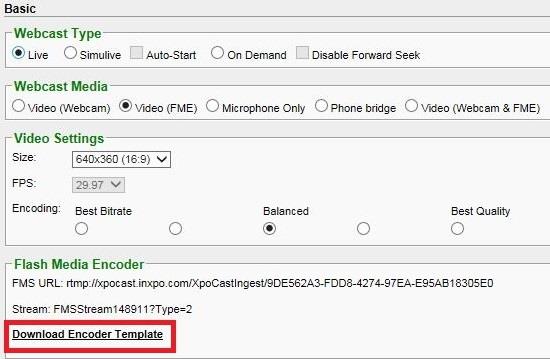
A quick and easy way to set up your encoding settings is to download the encoder template from your XPOCAST presentation and then load it as a preset into your encoding program.
-
Where can I download the XML file containing the webcast streaming information?
The XML file can be downloaded inside Program Wizard under the Settings tab. In the bottom left corner click on “Download Encoder Template”
-
How do I load the XML file inside of my encoding program?
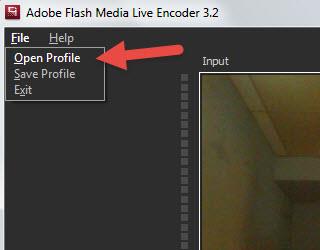
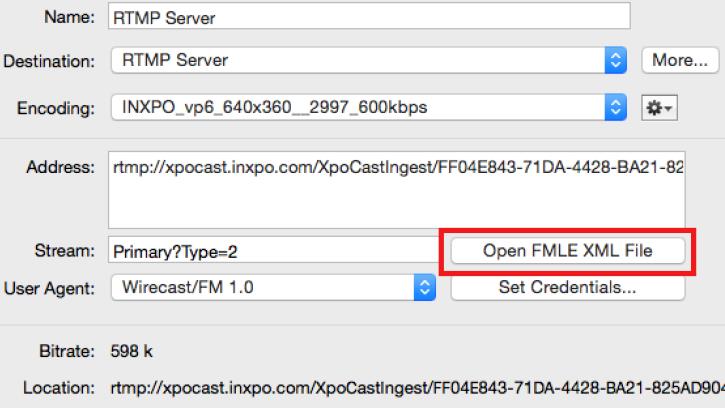
For FMLE, click on “File” in the top left corner and select, “Open Profile.” In Wirecast, click “Output” > “Output Settings” > “Open FMLE XML File.” Choose the XML file from your local machine. Please reference the screenshots on Page 4 of
this guide for more details.
-
Why can I not see the stream name in the presenter list?
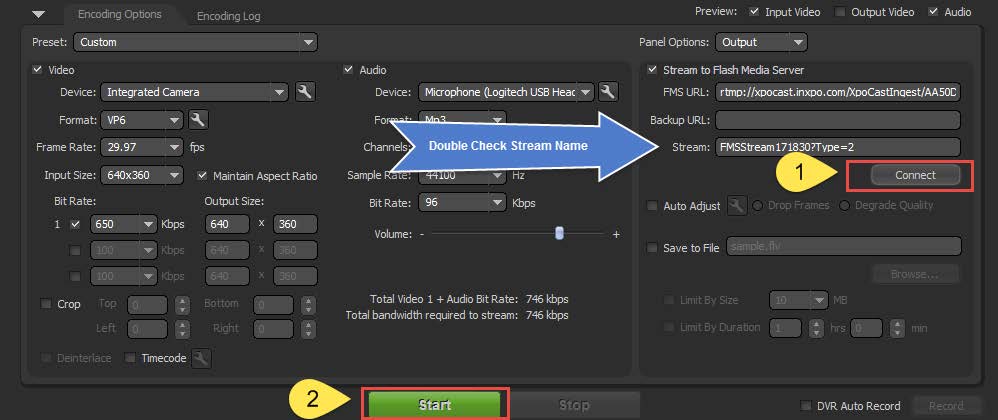
Please make sure that that in addition to hitting the connect button in FMLE, you must also click the Start button to connect the stream to the console. Double-check and make sure that the case sensitive FMS URL and Stream Name have been entered
correctly with no additional spaces at the end.
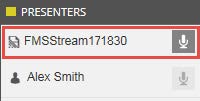
Once the stream is connected correctly, it should appear by name in the presenter list inside the console. A microphone icon should also light up.
-
I can see the stream name in the presenter list, but how do I confirm video and audio are coming through?
Once verified in the presenter list, you can preview video and audio by clicking on the preview button in the top left of the console.
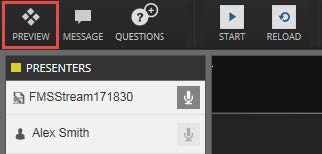
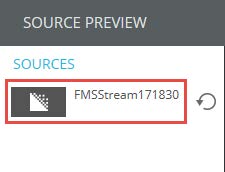
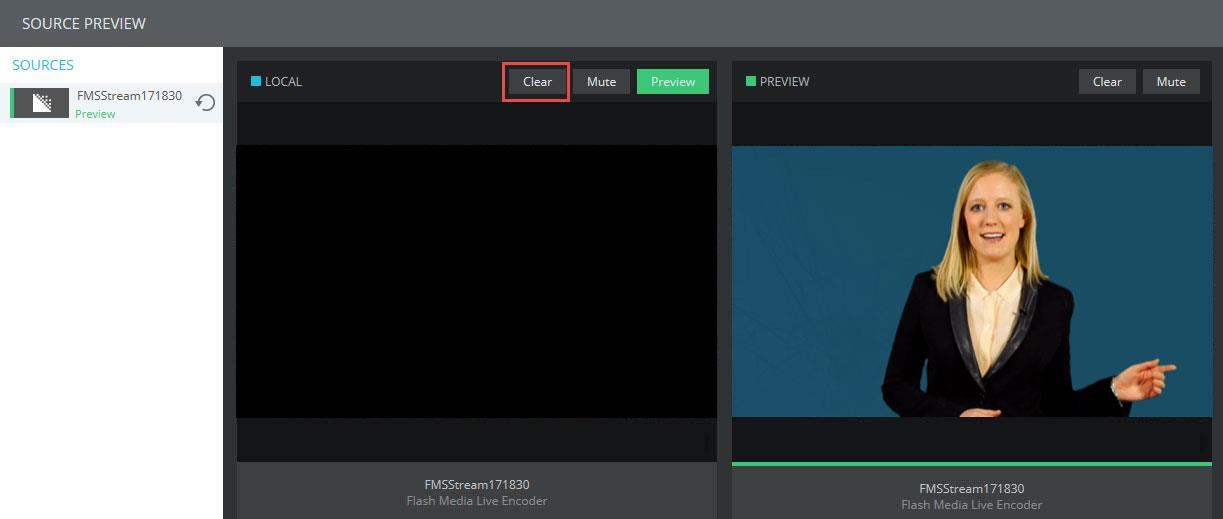
Once you have opened the window, click on the name under sources.
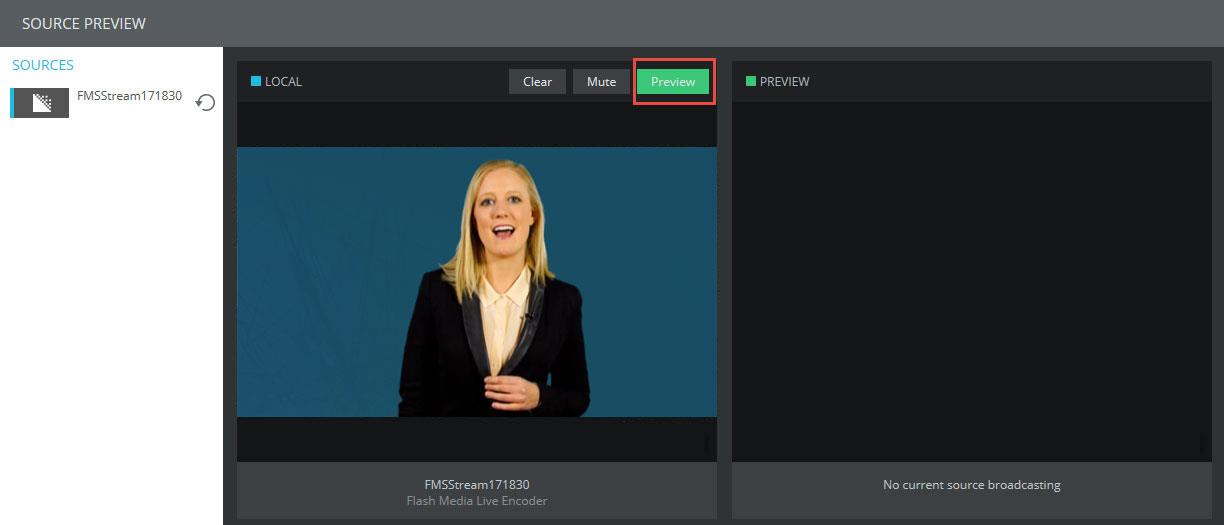
Video and Audio will then appear in the left window titled “Local.” To simulate the audience experience, click the green preview button.
The video will then appear in the right window (There will be a slight delay). At this point, you will see video in both windows.
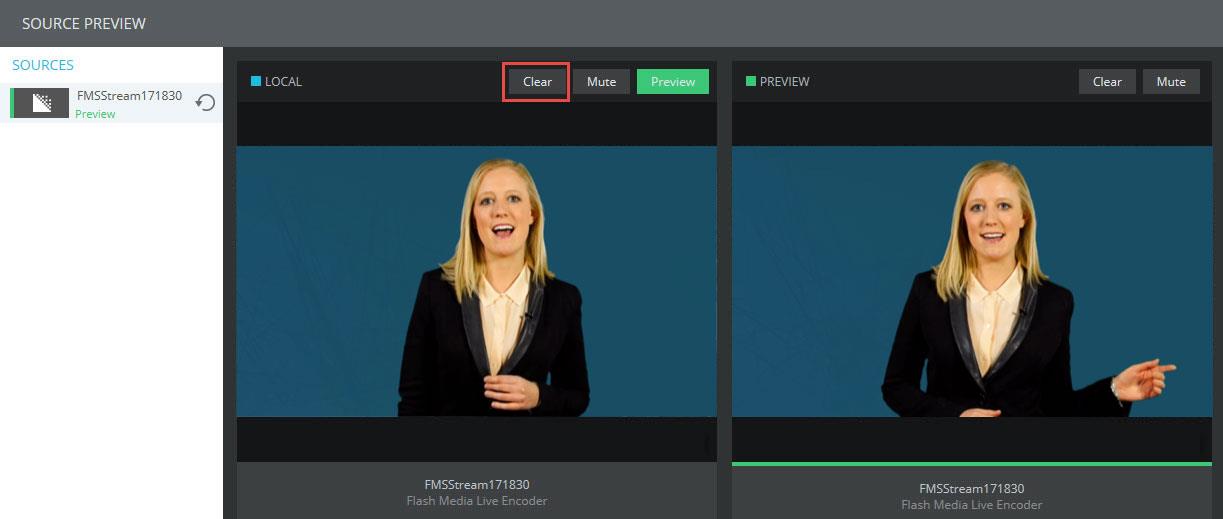
Simply press the clear button in the left “Local” window and you will be able to clearly verify the audience experience.
-
How do I start the presentation and push the stream live?
When you are ready to begin, simply press the START button in the top left corner and then click on the microphone icon next to the stream name in the presenter list.
-
How do I end the presentation and stop the stream?
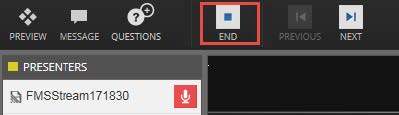
When the presentation has concluded, click on the END button in the top left corner.
You will be prompted with a new window asking if you would like to end the stream. To save the recording, make sure you leave the “Save Recording” box checked. If you would like to place the presentation on demand right away check the box
labeled “Place presentation On Demand”.
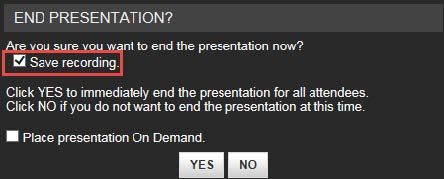
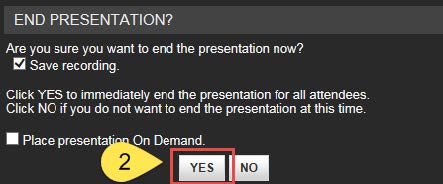
Once you have verified the correct boxes are checked, click YES to end the session. If you hit the END button by accident or too early, simply click the NO button and the presentation will continue to run. Once the presentation has ended,
go in to FMLE, hit STOP and then hit DISCONNECT.
-
Why is my audio and video choppy?
Please make sure you have a sufficient internet connection on site. We recommend that the encoding machine uses a 3MB hardwired dedicated line. Make sure that Wi-Fi is turned off on encoding machine. Speak with you IT provider before the live
day to insure you have the bandwidth required.
-
I can see video and hear audio as an Admin but attendees say they cannot? How can I verify?
First, open up the source preview window in the top left corner of the console. Once opened click on the stream name in the left column under SOURCES. The live stream (with a slight delay) will appear in the far right window. Right click
on the stream in the right window and select open details.
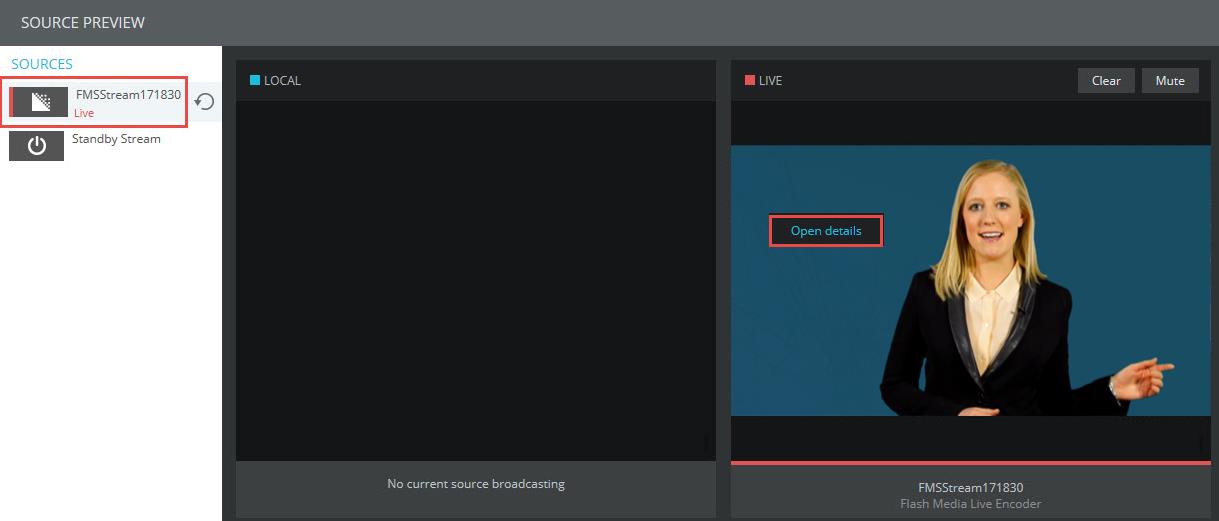
In the delivery methods drop down, select RTMP CDN. If you can see and hear the stream, the issue is isolated to that attendee. If you cannot hear or see the stream, there is an issue with the transcoding process.
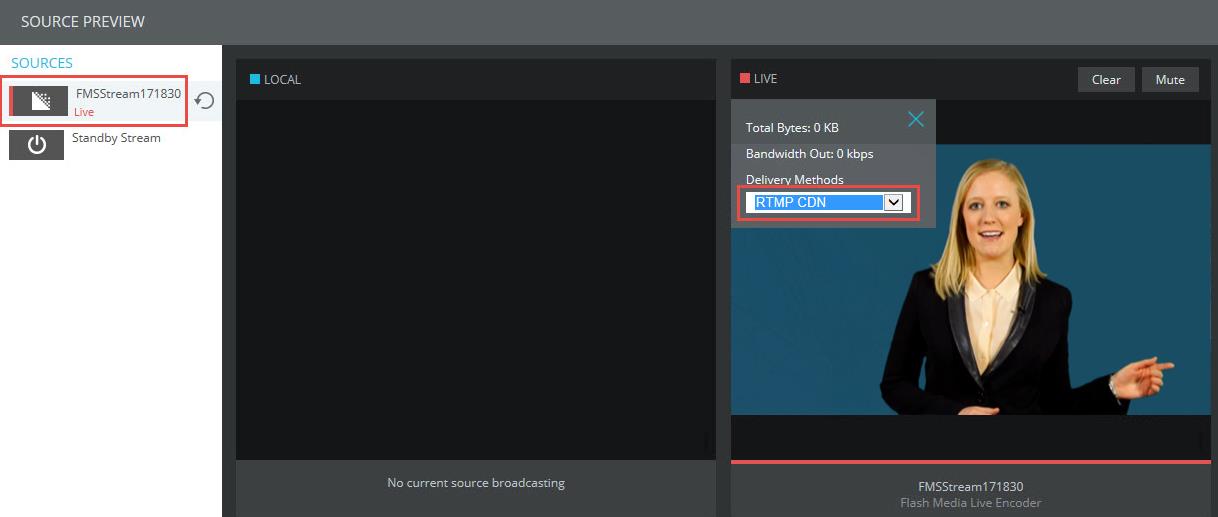
Remaining inside the Preview window, click on the stream “reload” button to the right of the name. This will reload the source in the console.
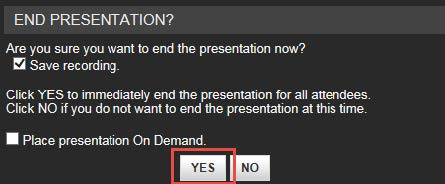
If the issues continues, stop the presentation by hitting the END button and saving the media. Stop and disconnect the stream from the platform from inside the encoder.
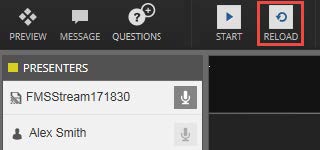
Reload the presentation and reconnect the stream to the platform. Confirm the issue has been resolved using the Preview window.
If the issue still persists, please contact INXPO support or your Webcast Engineer.
-
Why is my audio and video out of sync?
Make sure that your framerates match across all of your settings on the camera, the encoder, and the XPOCAST presentation. The standard encoding fps for streaming is 29.97. If the video is in sync in your encoding program but out of sync on
the stream in XPOCAST, it could be an internet issue. Ensure you have the appropriate bandwidth available and that you are connected using a hardwired internet connection.
Note: Before the live day, make sure you have tested your equipment and workflow thoroughly, confirming you have successfully streamed to XPOCAST.