Menu

Streaming Guide

“How-to” Guide and FAQ.

Network and Bandwidth Considerations:

Test your Internet connection bandwidth around the world with this interactive broadband speed test

  • The dedicated line must have at least 3 Mbps of available upstream and downstream bandwidth

  • This test should be performed at least 24 hours prior to the presentation start time. If it is found that bandwidth is insufficient, an alternate setup may be required.

Use the Port Check link to test your Internet connection to verify there are not any firewall or port issues on your network that will prohibit proper streaming.

  • The FME stream should have a dedicated internet line used only by the encoder

  • The dedicated line should allow direct RTMP:1935 packets to the INXPO origin server

  • The dedicated line should be allowed to VPN to the INXPO origin server (if needed)

Please ensure that there is a primary and a secondary stream. In case the primary stream fails, the secondary stream can be used as a backup.

  • There should be two encoding devices that have separate streams configured on each machine.

  • The stream names need to be unique for each of the machines so they display correctly in the Presenter list.

Please ensure that all power management functions on the computer are turned off so that the computer does not go to sleep during the streaming. Please do not access the webcast on the same machine that is encoding the stream.

Codecs:

Please be sure to match your encoder settings with the video settings that you have established in XPOCAST, or refer to the specifications that your webcast engineer recommends for your presentation. If the codec being used does not match the XPOCAST settings, an alert will display in the Source Preview window. Always encode the stream using the proper codec so that the presentation file saves correctly in XPOCAST.

FLV
  • Flash presentations require the VP6 codec for video, and the MP3 codec for audio.

  • Typical streams run around 500 Kbps video, 48 Kbps audio (about 550 Kbps combined)

H.264
  • H.264 or x264 codec for video, AAC codec for audio.

  • Bitrate is also determined by video resolution and content. Faster motion and higher detailed videos will increase the bandwidth requirements.

H.264 (Adaptive)
  • Same as H.264 presentations, but streams at a much higher bitrate (1500-2000 Kbps) which XPOCAST automatically adjusts for each attendee based on their bandwidth.

  • Users with insufficient bandwidth will receive an “audio-only” stream.

Flash Media Live Encoder:

Flash Media Live Encoder is a free Adobe program used to stream video sources that are connected to the encoding laptop. It’s available on PC and Mac, but usually operates more effectively on PC.

Download and install the latest version of Adobe Flash Media Live Encoder.

Configure the encoding options

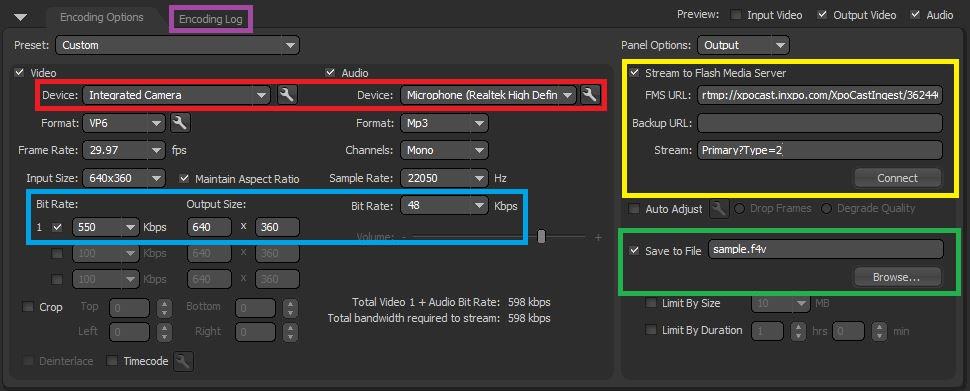
FLV, 640x360, 29.97fps, 550kbps total bitrate

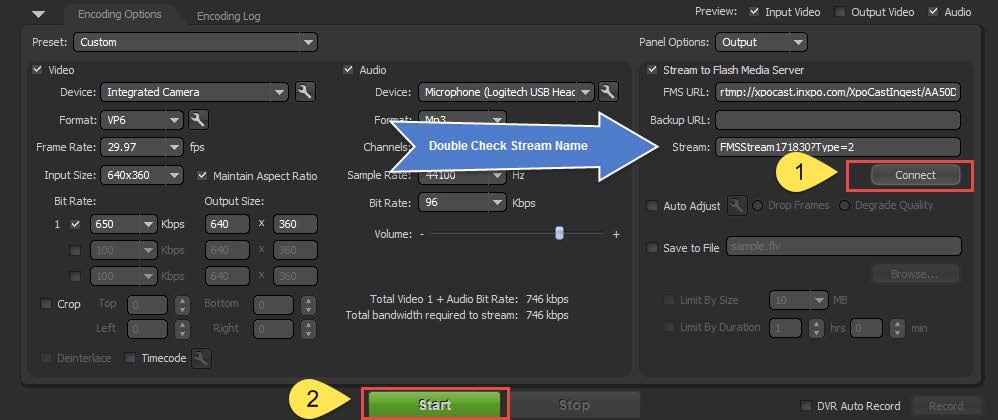
  • Select your capture device in the video and audio “Device” drop‐down menus, highlighted above in red.

  • Configure the video resolution and bitrate settings, based upon the instructions that you receive from INXPO. This area is highlighted above in blue.

  • Ensure your keyframe is set to 1 second or the lowest keyframe available. This setting can be found by accessing the icon that is located next to the “Format” option:

  • Enter the “FMS URL” and “Stream” information as provided by INXPO. This area is highlighted above in yellow.

  • Confirm that the “Save to File” box is checked. You can select a specific location for the backup file using the “Browse” button. This area is highlighted above in green.

Click “Start” to begin streaming.

If you receive an error message:

  • Check the “Encoding Log” for details, highlighted above in purple.

  • If you manually type in the “FMS URL” – make sure there isn’t a space at the very end of the address, and that all case-sensitive letters match correctly.

  • The “Stream” name needs to have ?Type=2 at the end in order to display in XPOCAST’s presenter list. This is case sensitive and should not have any spaces, before or after.

Wirecast:

Wirecast is a premium program that encodes, switches, and streams video sources and/or media files from your encoding laptop to the XPOCAST platform.

Download and install Wirecast. Note that Wirecast’s latest release, “Version 6,” only supports H.264 video codecs. If you would like to use it for an FLV presentation, you’ll need to download a retrograde version of Wirecast, “Version 5.”

Configure the encoding options:

  • Using the menu bar at the top of the Screen, go to “Output” > “Output Settings”

  • At the prompt, select “RTMP Server” as the destination and click “Okay”

  • Click the gear icon to the right of the “Encoding” drop down list and choose “New Preset”

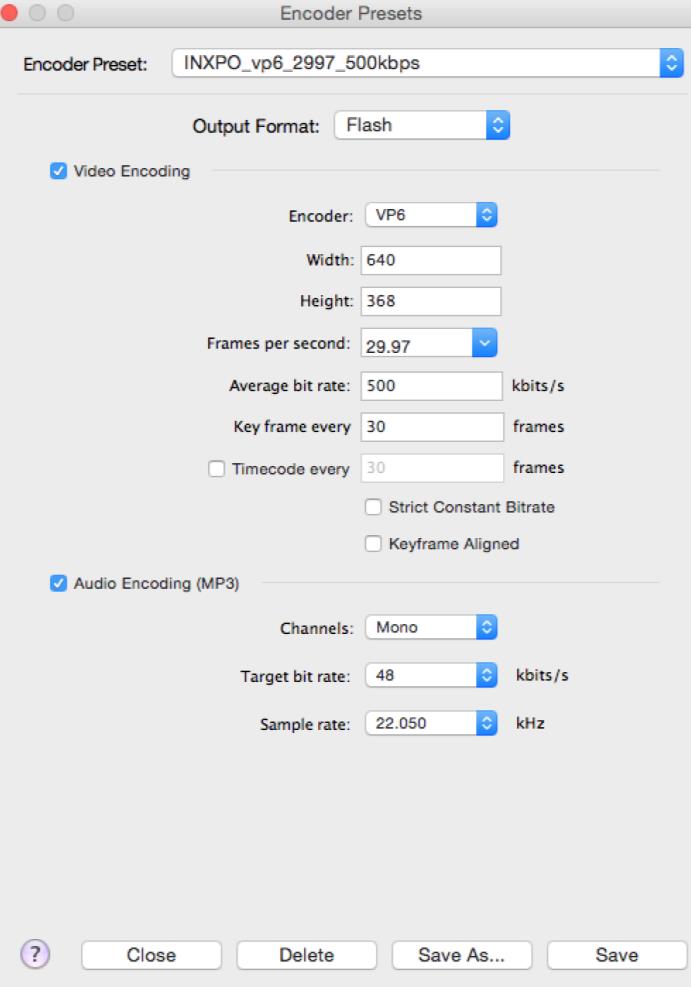
  • Name your preset and then configure to match the XPOCAST settings you’re using.

Here are a few examples of Encoder Presets for various setups:

FLV, 640x360, 29.97fps, 550kbps total bitrate

H.264, 640x360, 29.97fps, 650kbps total bitrate

  • Note that Wirecast may slightly adjust the width/height settings. You’ll receive a prompt when saving.

  • Be sure to use the “Baseline” profile for H.264 presets to ensure connections for XPOCAST mobile users.

Encoder Template File (XML):

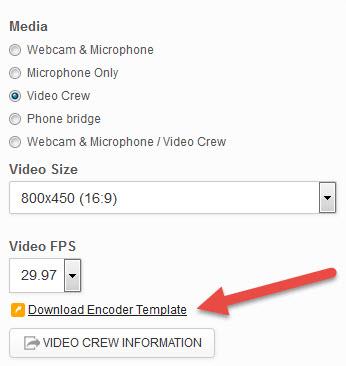
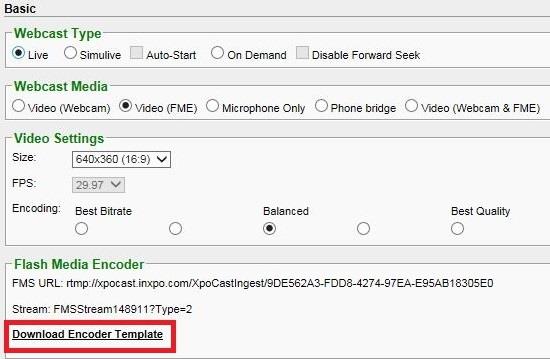
A quick and easy way to set up your encoding settings is to download the encoder template from your XPOCAST presentation and then load it as a preset into your encoding program.

Template download in BTV or PRIME:

H.264, 640x360, 29.97fps, 650kbps total bitrate

  • Pick a folder destination for your XML file, and save it to your computer.

  • Open your encoding program and load the XML file:

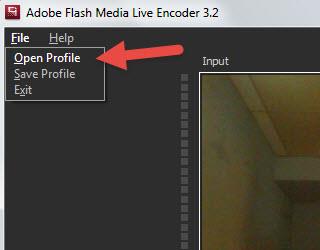
FMLE: File > Open Profile

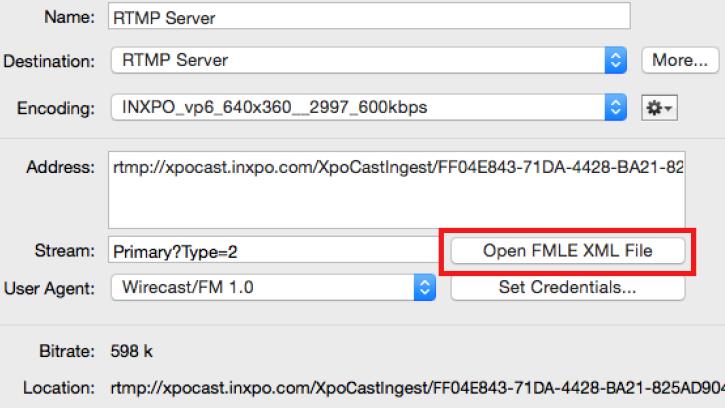
Wirecast: Output > Output Settings

  • When the template is loaded, the Encoding Options will automatically be filled in to coincide with the settings in XPOCAST. (Note that in Wirecast, only the stream name and RTMP address will be loaded via the XML file. All other encoding settings will need to be adjusted manually. Please reference page 3 for additional information on this process.)

  • Double check your output bitrates to ensure your audience can maintain a stable connection, and then start the stream.

  • Upon successful connection, the stream will display in the Presenter list in XPOCAST and can be selected as the source once the presentation is live.

  1. Where can I download the XML file containing the webcast streaming information?

    The XML file can be downloaded inside Program Wizard under the Settings tab. In the bottom left corner click on “Download Encoder Template”

  2. How do I load the XML file inside of my encoding program?

    For FMLE, click on “File” in the top left corner and select, “Open Profile.” In Wirecast, click “Output” > “Output Settings” > “Open FMLE XML File.” Choose the XML file from your local machine. Please reference the screenshots on Page 4 of this guide for more details.

  3. Why can I not see the stream name in the presenter list?

    Please make sure that that in addition to hitting the connect button in FMLE, you must also click the Start button to connect the stream to the console. Double-check and make sure that the case sensitive FMS URL and Stream Name have been entered correctly with no additional spaces at the end.

  4. Once the stream is connected correctly, it should appear by name in the presenter list inside the console. A microphone icon should also light up.
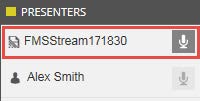
  5. I can see the stream name in the presenter list, but how do I confirm video and audio are coming through?

  6. Once verified in the presenter list, you can preview video and audio by clicking on the preview button in the top left of the console.
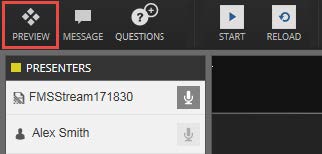
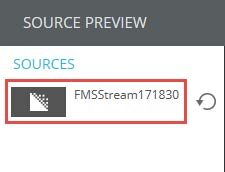
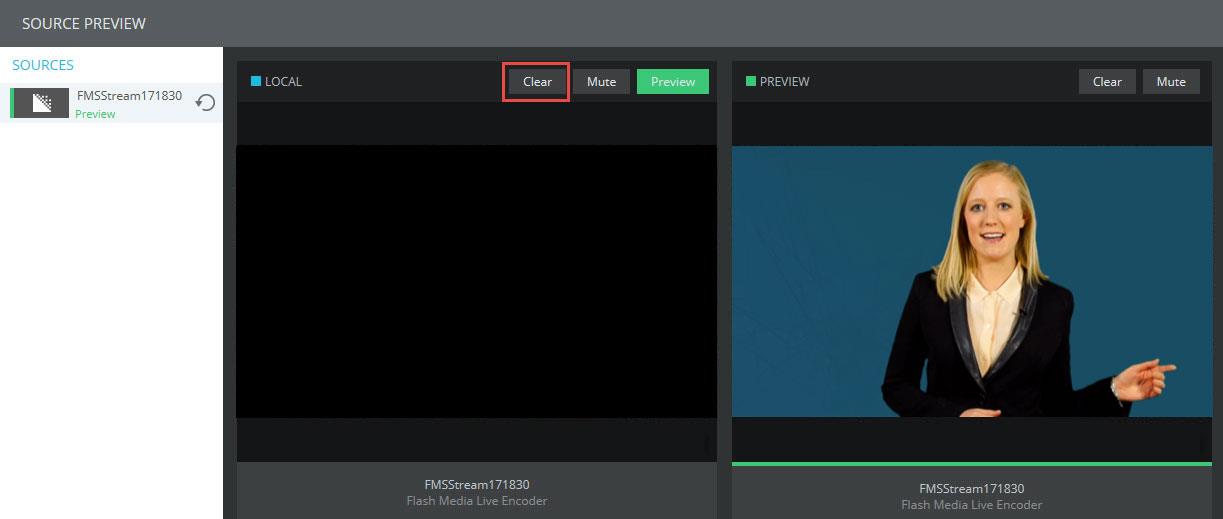
    Once you have opened the window, click on the name under sources.
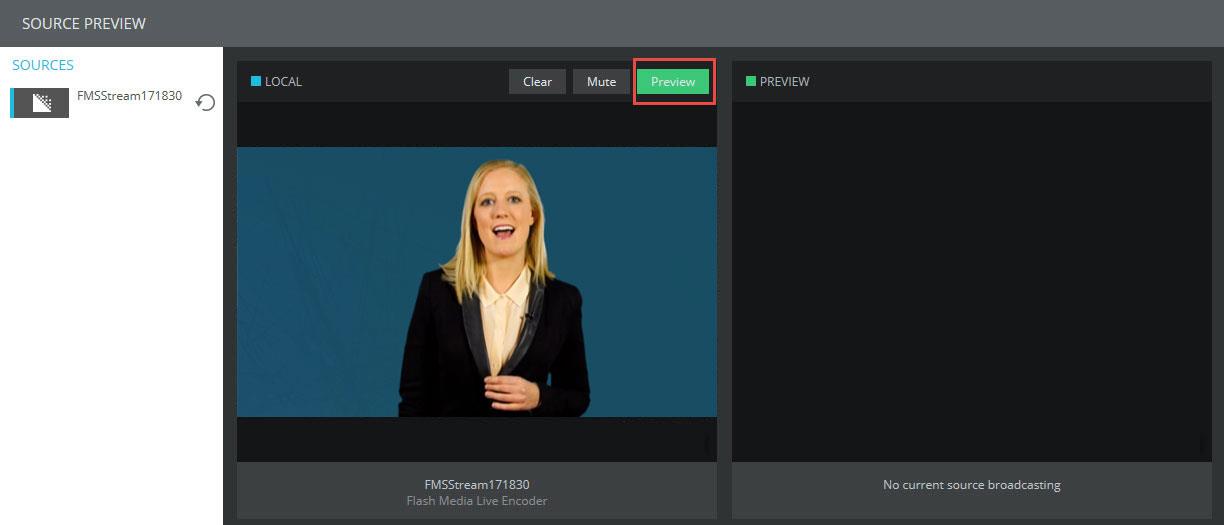
    Video and Audio will then appear in the left window titled “Local.” To simulate the audience experience, click the green preview button.
    The video will then appear in the right window (There will be a slight delay). At this point, you will see video in both windows.
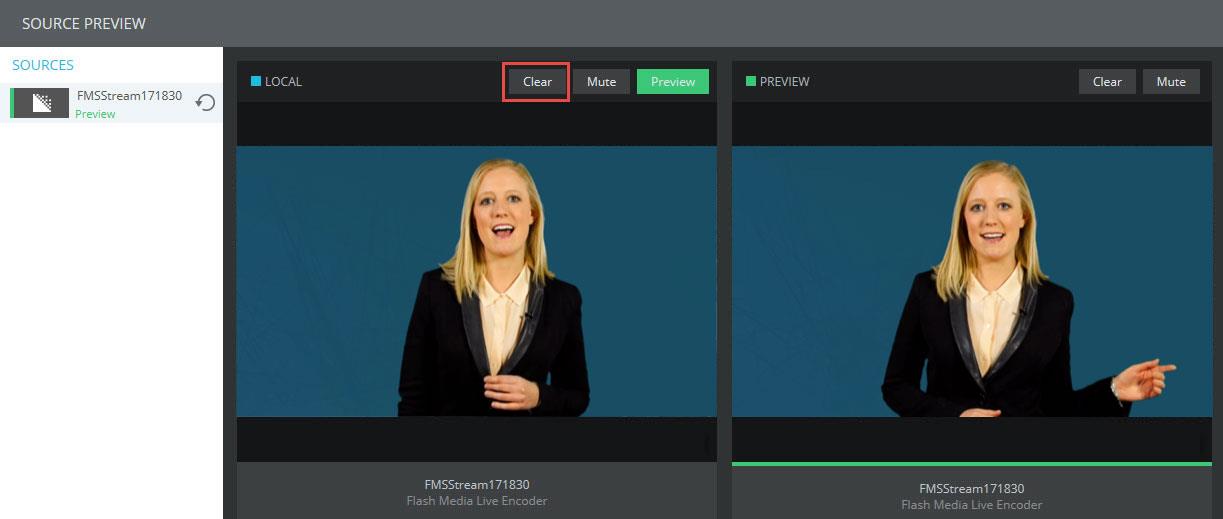
    Simply press the clear button in the left “Local” window and you will be able to clearly verify the audience experience.
  7. How do I start the presentation and push the stream live?

    When you are ready to begin, simply press the START button in the top left corner and then click on the microphone icon next to the stream name in the presenter list.

  8. How do I end the presentation and stop the stream?

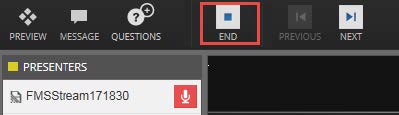
    When the presentation has concluded, click on the END button in the top left corner.

  9. You will be prompted with a new window asking if you would like to end the stream. To save the recording, make sure you leave the “Save Recording” box checked. If you would like to place the presentation on demand right away check the box labeled “Place presentation On Demand”.
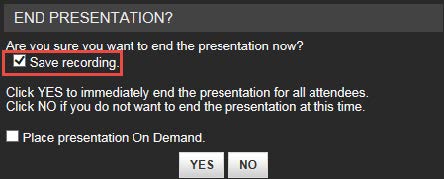
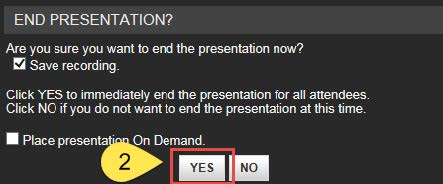
    Once you have verified the correct boxes are checked, click YES to end the session. If you hit the END button by accident or too early, simply click the NO button and the presentation will continue to run. Once the presentation has ended, go in to FMLE, hit STOP and then hit DISCONNECT.
  10. Why is my audio and video choppy?

    Please make sure you have a sufficient internet connection on site. We recommend that the encoding machine uses a 3MB hardwired dedicated line. Make sure that Wi-Fi is turned off on encoding machine. Speak with you IT provider before the live day to insure you have the bandwidth required.

  11. I can see video and hear audio as an Admin but attendees say they cannot? How can I verify?

  12. First, open up the source preview window in the top left corner of the console. Once opened click on the stream name in the left column under SOURCES. The live stream (with a slight delay) will appear in the far right window. Right click on the stream in the right window and select open details.
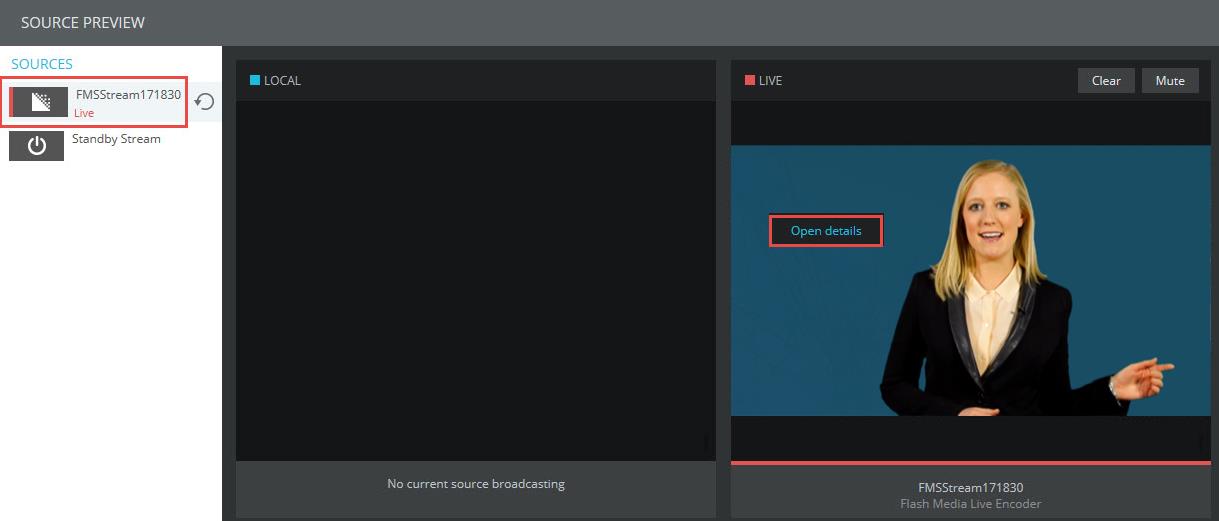
    In the delivery methods drop down, select RTMP CDN. If you can see and hear the stream, the issue is isolated to that attendee. If you cannot hear or see the stream, there is an issue with the transcoding process.
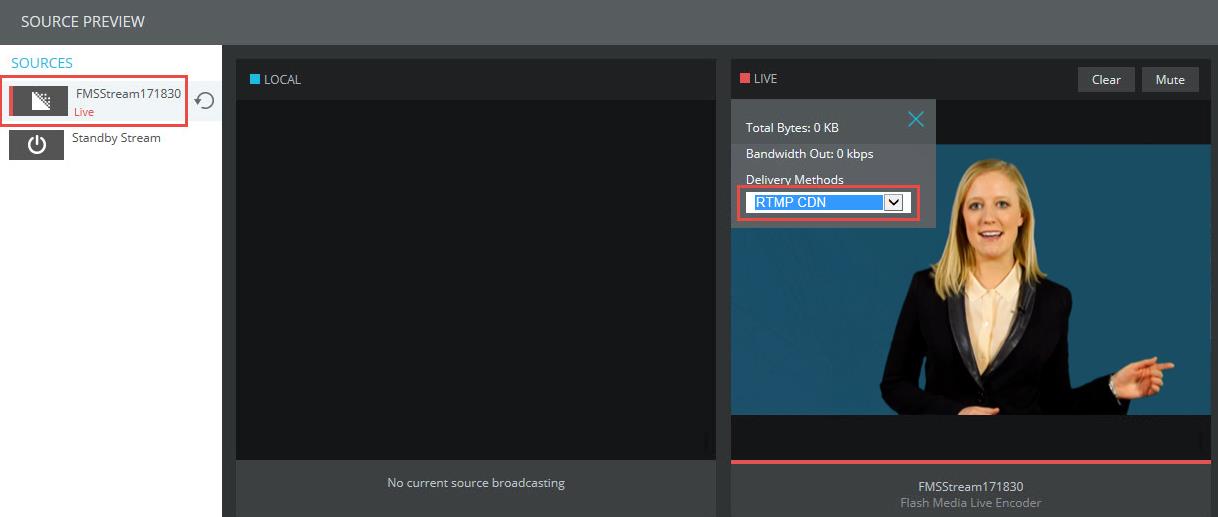
    Remaining inside the Preview window, click on the stream “reload” button to the right of the name. This will reload the source in the console.
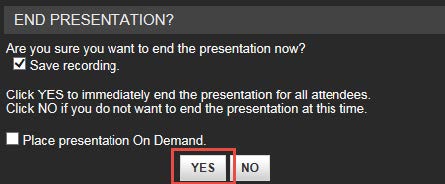
    If the issues continues, stop the presentation by hitting the END button and saving the media. Stop and disconnect the stream from the platform from inside the encoder.
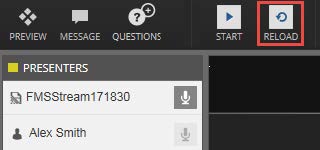
    Reload the presentation and reconnect the stream to the platform. Confirm the issue has been resolved using the Preview window.
    If the issue still persists, please contact INXPO support or your Webcast Engineer.

  13. Why is my audio and video out of sync?

    Make sure that your framerates match across all of your settings on the camera, the encoder, and the XPOCAST presentation. The standard encoding fps for streaming is 29.97. If the video is in sync in your encoding program but out of sync on the stream in XPOCAST, it could be an internet issue. Ensure you have the appropriate bandwidth available and that you are connected using a hardwired internet connection.

Note: Before the live day, make sure you have tested your equipment and workflow thoroughly, confirming you have successfully streamed to XPOCAST.