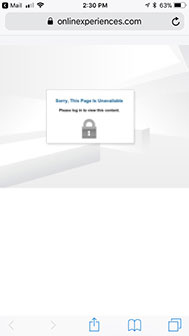
Error Message: "User Already Logged In" Message
A user can only be logged into the event once at a time. If the user is attempting to access from two locations (such as mobile and a computer), they will need to first log out of the original location before attempting to login to the event at a second location.
If a user receives the "User already logged in!" message after immediate logout of the event, they should wait 2 minutes, then attempt to access the event again.
Optionally, the cause of this may be a second attempt to log in after a pop-up or script blocker has prevented the event window from opening or the user's cookie settings are incorrect. If the new window is appearing, but instead of displaying the event it displays a login page, this is most likely a cookie problem.
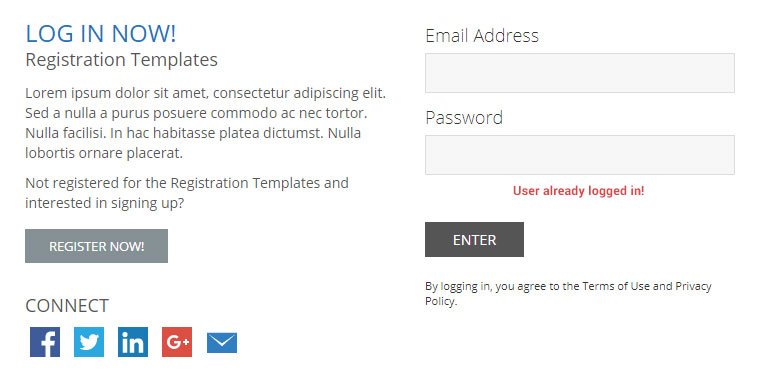



 Error Message: Invalid Login ID or Password
The user has provided an incorrect login ID and/or password for the specified login ID, or the user does not exist in the system.
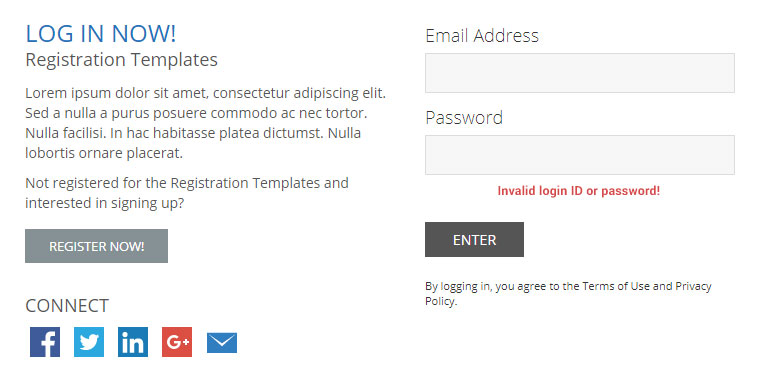
- Ensure the user is entering the correct login ID by checking the login listed in the profile / user account. Show Me (VX)
- Ensure that the user is attempting to log in to the correct environment by checking the full login URL. Show Me (VX)
- Check to see if the user has an extra space at the end of their login ID (and/or email address). On the registration, they could have copied/pasted from an email and grabbed an extra space accidentally. Show Me (VX)
- Passwords are encrypted in the system. You will not be able to view the password that was originally created for a user. This creates a more secure environment for the end-user. If a user has an incorrect password, manually create a new one. Show Me (VX)
- If the user would prefer a forgot password email so they may use a system generated password, send one from the user account / profile. Show Me (VX)
Error Message: You are not registered for this event
The user is attempting to log into an event that requires registration, but the user has not registered or needs to be registered manually.
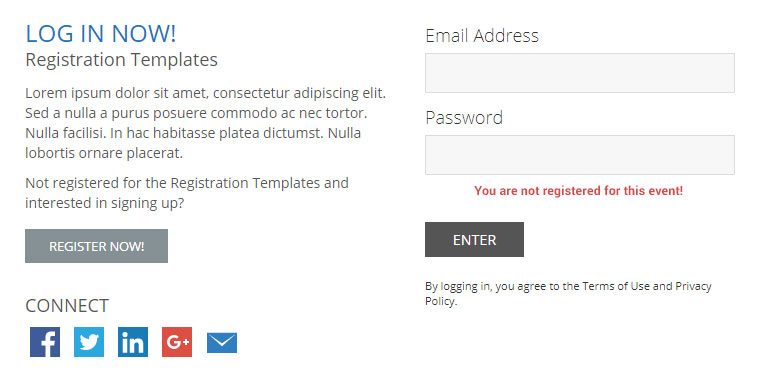
- The user account exists because they previously registered for another event in the tenant. Send the user to the registration page via the registration URL.
- The user is a sponsor user and should be registered manually. Show Me (VX)
-
The user was created manually as a user account in the system, but was not registered.
- For free events, manually register the user. Show Me (VX)
- For paid events, send the user to the registration page via the registration URL.
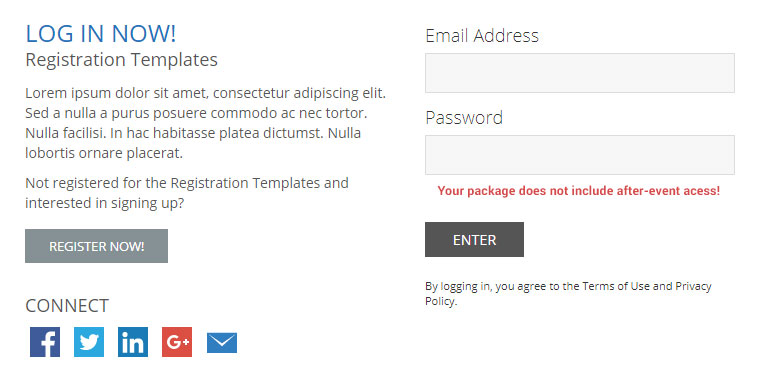
Error Message: Your Package Doesn't Include Post Event Access
Users will receive this error message when attempting to login to the environment during the after event access period, but their event package does not provide access.
- Determine if the user has the correct registration package by examining their registration record. Show Me (VX)
- Modify the user's registration package to one that provides after-event access. Show Me (VX)
-
The registration package was created without after-event access rows, but the package should have them enabled.
- Contact the event contact for confirmation and setup assistance.
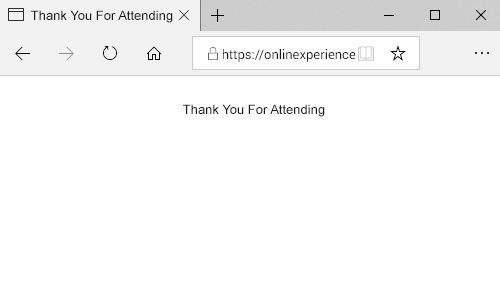
Error Message: User sees "Thank You For Attending" screen
If the user attempts to login and is automatically brought to a thank you for attending screen, a popup blocker or script blocker could be preventing the event window from opening.
 Error Message: Secure Content Display
The user receives a pop-up message that says "This page contains both secure and nonsecure items. Do you want to display the nonsecure items?" A secure content issue may also appear as a blank page without an error message. The page will not load part or all of the content.
NOTE: The prompt may also read that the page only displays nonsecure items.
Error Message: Login URL Issues
In some cases, certain email clients will not pass through the entire login URL when clicked from the body of an email. As a best practice, ensure that the full URL is also included on email campaigns to allow users to copy and paste the link into their browser. Some email programs may truncate the login link causing the following error screen below to display.
NOTE: Hotmail will truncate a URL if it has a "?". Thus, everything following the "?" will not be passed and the following error may appear.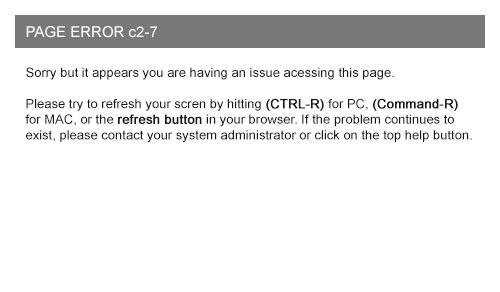 Error Message: Received when accessing through iPhone
When accessing the event through an iPhone, I receive the error message below after entering my login credentials.