Attendee Dial-In
The attendee dial-in feature provides attendees the ability to dial-in to the audio portion of the webcast from a telephone. Attendees will engage in the webcast slides, participate in the group chat, Q&A, etc. from their computer while listening to the audio from their telephone.
Attendee Dial-In Setup
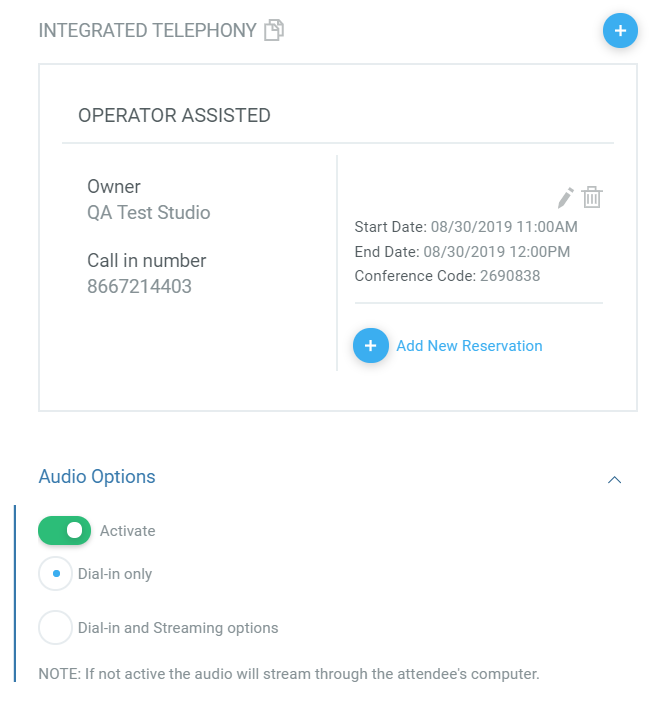
Within Studio Webcasting, the attendee dial-in feature can be enabled from wthin the "Settings" section. This feature is available when using operated assisted telephony. If there are no operator asssisted reseverations scheduled, the attendee dial-in option will not appear.
Once the operator assisted reserveration is configured, the attendee dial-in can be activated and setup with one of the following options:
- Dial-in only - Will only allow attendees to dial-in to receive the audio portion of the webcast. There is no option to receive the stream (audio/video) via their computer.
- Dial-in and Streaming options - Allows the attendee to choose whether they want to dial-in or receive the stream via their computer.
Activating within the Presenter Console
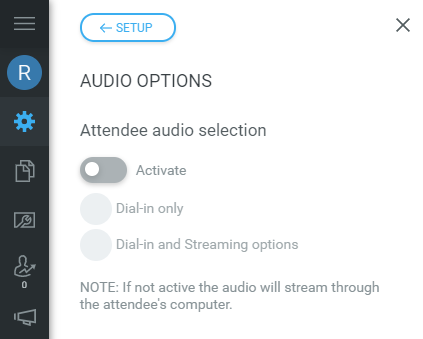
The attendee dial-in feature can also be activated from within the presenter console by selecting "Settings" and "Audio Options". This feature is available when using operated assisted telephony. If there are no operator assisted reseverations scheduled, Audio Options will not appear.
From there you will have the same options as found within the "Settings" section of Studio Webcasting, where you can select one of the audio options.
- Dial-in only - Will only allow attendees to dial-in to receive the audio portion of the webcast. There is no option to receive the stream (audio/video) via their computer.
- Dial-in and Streaming options - Allows the attendee to choose whether they want to dial-in or receive the stream via their computer.
Attendee Experience
Selecting an audio option
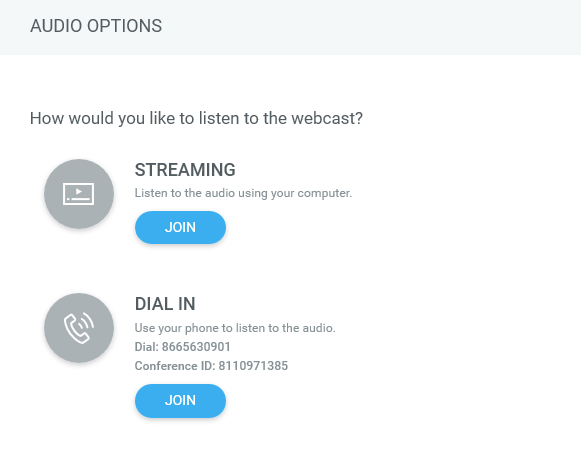
When the attendee enters the webcast, a prompt will display allowing them to select an audio option for the webcast. When selecting "Dial In", the attendee should dial in to the Phone Number and Conferene ID followed by Join. By selecting Join, they will be taken to the webcast.
- Streaming - Audio will stream through the attendee's computer.
- Dial-In - Attendees will use their telephone to receive the audio stream.
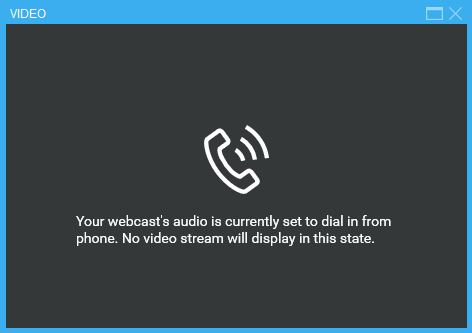
When "Dial In" is selected, the media panel will display as below. Slides will advance in sync with the audio that attendees recieve via the telephone.
Changing your audio selection
If an attendee mistakenly selects the incorrect audio option or would like to change their audio selection, they can do so via the audio panel icon on the console.
- To change from streaming to dial-in, click the panel icon and select "Join" for the Dial In option.
- To change from dial-in to streaming, the attendee will need to refresh their console to receive the streaming option.